PDF Index
| SDT-base
Contents
Functions
PDF Index |
iiplot is the response viewer used by SDT. It is essential for the identification procedures but can also be used to visualize FEM simulation results.
As detailed in section 2.2, identification problems should be solved using the standard commands for identification provided in idcom while running the iiplot interface for data visualization. To perform an identification correctly, you need to have some familiarity with the interface and in particular with the iicom commands that let you modify what you display.
For simple data viewing you can open an iiplot figure using ci=iiplot (or ci=iiplot(2) to specify a figure number). For identification routines you should use ci=idcom (standard datasets are then used see section 2.2).
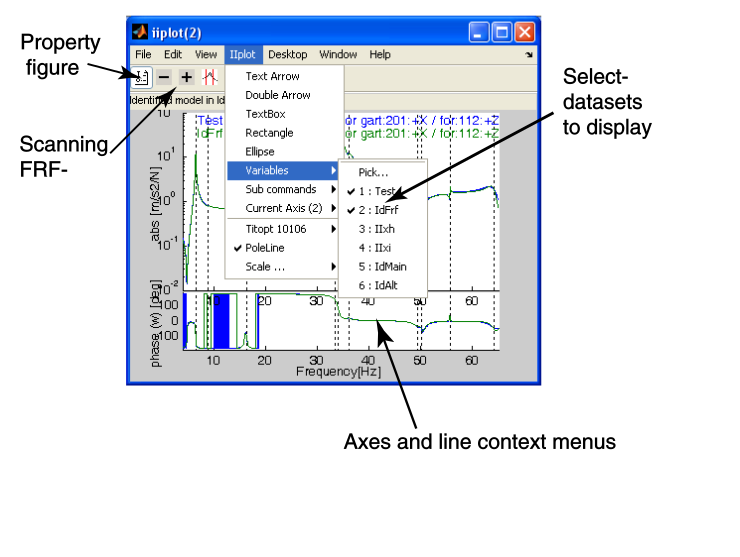
To familiarize yourself with the iiplot interface, run demosdt('demogartidpro'). Which opens the iiplot figure and the associated iiplot(2) properties figure whose tabs are detailed in the following sections.
 | Toggles the display or not of the iiplot property figure. |
 | Previous channel/deformation, see iicom ch+. |
 | Next channel/deformation. |
 | Fixed zoom on FRF, see iicom wmin. Note that the variable zoom (drag box) is always active, see iimouse zoom. |
 | Start cursor, see iimouse Cursor. |
 | Refresh the displayed axes. |
 | No subplot. See iicom Sub[1,1]. |
 | 2 subplots. See iicom Sub[2,1]. |
 | Amplitude and phase subplots. See iicom Submagpha. |
 | switch lin/log scale for x axis. See iicom xlin. |
 | switch lin/log scale for y axis. See iicom ylog. |
 | switch lin/log scale for z axis. See iicom xlog. |
 | Show absolute value. See iicom Showabs. |
 | Show phase. See iicom Showpha. |
 | Show real part. See iicom Showrea. |
 | Show imaginary part. See iicom Showima. |
 | Show real and imaginary part. See iicom Showr&i. |
 | Show Nyquist diagram. See iicom Shownyq. |
 | Show unwrapped phase. See iicom Showphu. |
 | Snapshot. See iicom ImWrite |
iiplot, feplot, and ii_mac figure have a large number of interactions.
Open the ContextMenu associated with any axis (click anywhere in the axis using the right mouse button), select Cursor, and see how you have a vertical cursor giving information about data in the axis. To stop the cursor use a right click or press the c key. Note how the left click gives you detailed information on the current point or the left click history. In iiplot you can for example use that to measure distances.
Click on pole lines (vertical dotted lines) and FRFs and see how additional information on what you just clicked on is given. You can hide the info area by clicking on it.
The axes ContextMenu (click on the axis using the right mouse button) lets you select , set axes title options, set pole line defaults, ...
The line ContextMenu lets you can set line type, width, color ...
The title/label ContextMenu lets you move, delete, edit ... the text
After running through these steps, you should master the basics of the iiplot interface. To learn more, you should take time to see which commands are available by reading the Reference sections for iicom (general list of commands for plot manipulations), iimouse (mouse and key press support for SDT and non SDT figures), iiplot (standard plots derived from FRFs and test results that are supported).
iiplot considers data sets in the following format
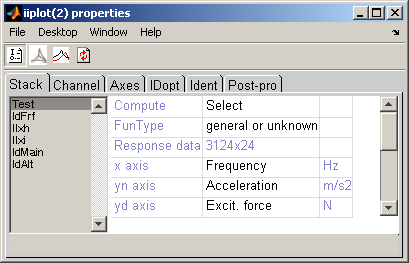
This data is stored in iiplot figures as a Stack field (a cell array with the first column giving 'curve' type entries, the second giving a name for each dataset and the last containing the data, see stack_get). To allow easier access to the data, SDT handle objects are used. Thus the following calls are equivalent ways to get access to the data
 ci=iicom('curveload','gartid');
 iicom(ci,'pro');iicom(ci,'CurTab Stack'); % show stack tab

 % Normal use : the figure pointer stack
 ci.Stack % show content of iiplot stack
 ci.Stack{'Test'}  % a copy of the same data, selected by name
 ci.Stack{1,3}     % the same by index
 % Use regular expresion ('II.*' here) for multiple match
 ci=stack_rm(ci,'curve','#II.*')

 % If you really insist on low level calls
 gf=sdtdef('cf'); % recover current sdth handle, number may vary
 r1=get(gf,'userdata'); % object containing the data (same as ci)
 s=ci.vfields.Stack.GetData % get a copy of the stack (cell array with
            % type,name,data where data is stored)
 s{1,3}     % the first data set

 %  Alternative use (obsolete) : the XF stack pointer
 XF1=iicom(ci,'curvexf');
 XF1('Test')        % still the same dataset, indexed by name
 XF2=XF1.GetData;   % Copy the data from the figure to variable XF2
The ci.Stack handler allows regular expression based access, as for cf.Stack. The text then begins by the # character.
The graphical representation of the stack shown in figure 2.3 lets you do a number of manipulations witch are available trough the context menu of the list of datasets in the stack
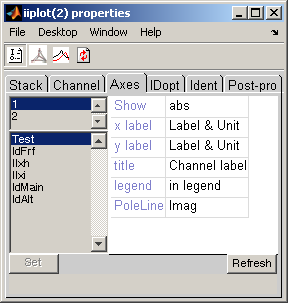
iiplot lets you display multiple axes see iicom Sub. Information about each axis is show in the axes tab.
For example open the interface with the commands below and see a few thing you can do
 ci=idcom;iicom(ci,'CurveLoad sdt_id');
 ci.Stack{'curve','IdFrf'}=ci.Stack{'Test'}; % copy dataset
 ci.Stack{'IdFrf'}.xf=ci.Stack{'Test'}.xf*2; % double amplitude
 iicom('CurTab Axes');
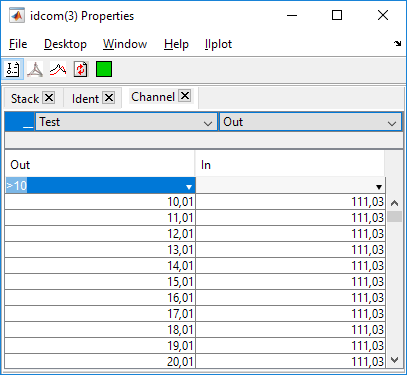
Once you have selected the datasets to be displayed, you can use the channel tab to scan trough the data. Major commands you might want to know

 to scan trough different transfer functions. Note that you can also use the + or - keys when a drawing axis is active.
ci=iicom('curveload gartid');
ci.Stack{'Test'}.yn.unit='N';
ci.Stack{'Test'}.yd.unit='M';
iicom sub
With SDT 6, global variables are no longer used and iiplot supports display of curves in other settings than identification.
If you have saved SDT 5 datasets into a .mat file, iicom('CurveLoad FileName') will place the data into an SDT 6 stack properly. Otherwise for an operation similar to that of SDT 5, where you use XF(1).xf rather than the new ci.Stack{'Test'}.xf, you should start iiplot in its identification mode and obtain a pointer XF (SDT handle object) to the data sets (now stored in the figure itself) as follows
 >> ci=iicom('curveid');XF=iicom(ci,'curveXF')

XF (curve stack in figure 2) =

XF(1) : [.w    0x0, xf    0x0] 'Test'  : response (general or unknown)
XF(2) : [.w    0x0, xf    0x0] 'IdFrf'  : response (general or unknown)
XF(3) : [.w    0x0, xf    0x0] 'IIxh'  : response (general or unknown)
XF(4) : [.w    0x0, xf    0x0] 'IIxi'  : response (general or unknown)
XF(5) : [.po   0x0, res   0x0] 'IdMain'  : shape data
XF(6) : [.po   0x0, res   0x0] 'IdAlt'  : shape data
The following table lists the global variables that were used in SDT 5 and the new procedure to access those fields which should be defined directly.
| XFdof | described DOFs at which the responses/shapes are defined, see .dof field for response and shape data in the xfopt section, was a global variable pointed at by the ci.Stack{'name'}.dof fields. |
| IDopt | which contains options used by identification routines, see idopt) is now stored in ci.IDopt. |
| IIw | was a global variable pointed at by the ci.Stack{'name'}.w fields. |
| IIxf | (main data set) was a global variable pointed at by the ci.Stack{'Test'}.xf fields. |
| IIxe | (identified model) was a global variable pointed at by the ci.Stack{'IdFrf'}.xf fields. |
| IIxh | (alternate data set) was a global variable pointed at by the ci.Stack{'IIxh'}.xf fields. |
| IIxi | (alternate data set) was a global variable pointed at by the ci.Stack{'IIxi'}.xf fields. |
| IIpo | (main pole set) was a global variable pointed at by the ci.Stack{'IdMain'}.po fields. |
| IIres | (main residue set) was a global variable pointed at by the ci.Stack{'IdMain'}.res fields. |
| IIpo1 | (alternate pole set) was a global variable pointed at by the ci.Stack{'IdAlt'}.po fields. |
| IIres1 | (alternate residue set) was a global variable pointed at by the ci.Stack{'IdAlt'}.res fields. |
| XF |
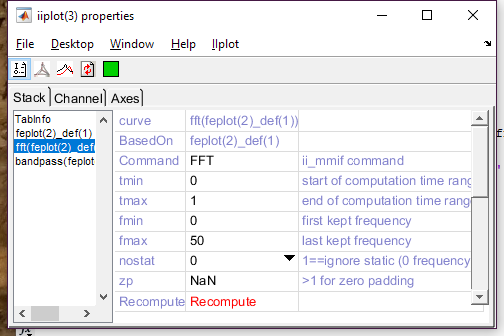
iiplot figure lets you perform standard signal processing operations (FFT, MMIF, filtering...) directly from the GUI. Opening iiplot properties figure, they are accessible trough the contextual menu compute (right click on the curve list in the Stack tab). Once an operation has been performed, its parameters can be edited in the GUI, and it can be recomputed using the Recompute button.
Following example illustrates some signal processing commands.
[mdl,def]=fe_time('demobar10-run'); % build mdl and perform time computation
cf=feplot(2); cf.model=mdl; cf.def=def;

ci=iiplot(3);
fecom(cf,'CursorOnIiplot') % display deformations in iiplot

% all following operations can be performed directly in the GUI:
% see the list of curves contained in iiplot figure, Stack tab:
iicom(ci,'pro');iicom(ci,'curtab Stack');
% compute FFT of deformations.  Name of entry 'feplot(2)_def(1)'
ename=ci.Stack(:,2); ename=ename{strncmp(ename,'feplot',5)};
ii_mmif('FFT',ci,ename) % compute
fname=sprintf('fft(%s)',ename);
iicom(ci,'curtab Stack',fname); % show FFT options that are editable
  % edit options & Recompute:
ci.Stack{fname}.Set={'fmax',50};
iicom(ci,'curtab Stack',fname,'Recompute');

% filter and display (the bandpass removes a lot of transient)
ii_mmif('BandPass -fmin 40 -fmax 50',ci,ename) % compute
fname=sprintf('bandpass(%s)',ename);
ci.Stack{fname}.Set={'fmin',10,'fmax',20};
iicom(ci,'curtab Stack',fname,'Recompute');
iicom(ci,'iix',{ename,fname});
This section lists various questions that were not answered elsewhere.
ci.ua.ob(1,11)=3; % define channel 3 as abscissa
iiplot;           % display the changes
set(ci.ga,'XLim',[0 1e-3]); % redefine axis bounds
%  sdtweb('demosdt.m#DemoGartteCurve') % FRF with 2 damping levels
ci=iiplot(demosdt('demogarttecurve'))
ci.Stack{'New'}
iicom(ci,'ChAllzeta')